We present, for WINDOWS-based computers, simplified instructions to install and to run the source codes of the composite-pulse nutation NMR applet for a single crystal. We should read the detailed instructions given about the source codes of the one-pulse nutation NMR applet for a single crystal before starting.
Download JDK if you don't have it already.
Step 1: Install folders
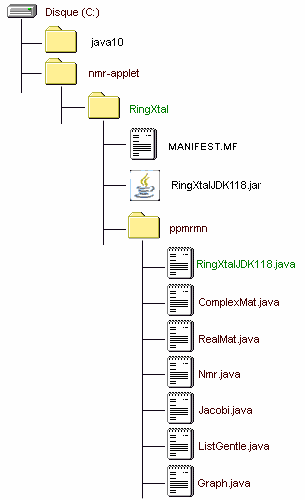
(1) We create, if not yet, a folder called nmr-applet in our hard disk C.
(2) In the nmr-applet folder, we create another folder called RingXtal. The MANIFEST.MF and RingXtalJDK118.jar files that support the applet will be saved in the RingXtal folder.
(3) In the RingXtal folder, we create the ppmrmn folder, whose name must not be changed, because ppmrmn is involved in the Java files as a package.
Step 2: Download *.java files
We download the following seven Java files into the ppmrmn folder created in Step 1 by clicking on their links.
Step 3: Compile *.java files
(1) We open a DOS window.
(2) We set path to include JDK10's bin, which is the directory of Java compiler (javac):
C:\Users\pm@pascal-man.com> path C:\java10\bin; %path%
(3) We change the directory to that of RingXtal:
C:\Users\pm@pascal-man.com> cd C:\nmr-applet\RingXtal
(4) We compile all the *.java files contained in the ppmrmn folder:
C:\nmr-applet\RingXtal>javac ppmrmn\*.java
(5) We create a MANIFEST.MF file in the RingXtal folder:
C:\nmr-applet\RotaryXtal>echo Main-Class: ppmrmn.RingXtalJDK118 > MANIFEST.MF
(6) We create an executable jar file, RingXtalJDK118.jar, in the RingXtal folder:
C:\nmr-applet\RingXtal>jar cvfe RingXtalJDK118.jar ppmrmn.RingXtalJDK118 ppmrmn
(7) We execute the jar file:
C:\nmr-applet\RingXtal>java -jar RingXtalJDK118.jar
A page of our web site describes the operation of this applet.